Faster Startup
macOS can start considerably faster because the SSD can access system files without the mechanical delays of a hard drive.
Mac SSD & RAM Upgrade Edmonton
Give an older Mac a practical performance upgrade. Replacing a traditional hard disk drive with a solid-state drive can dramatically improve startup, application loading and everyday responsiveness. On supported Mac models, additional RAM can also improve multitasking and performance.
By appointment only – no walk-ins accepted
more than 25 years of Mac repair experience • SSD & RAM upgrades • macOS upgrade available • Free Estimate • No Fix No Fee
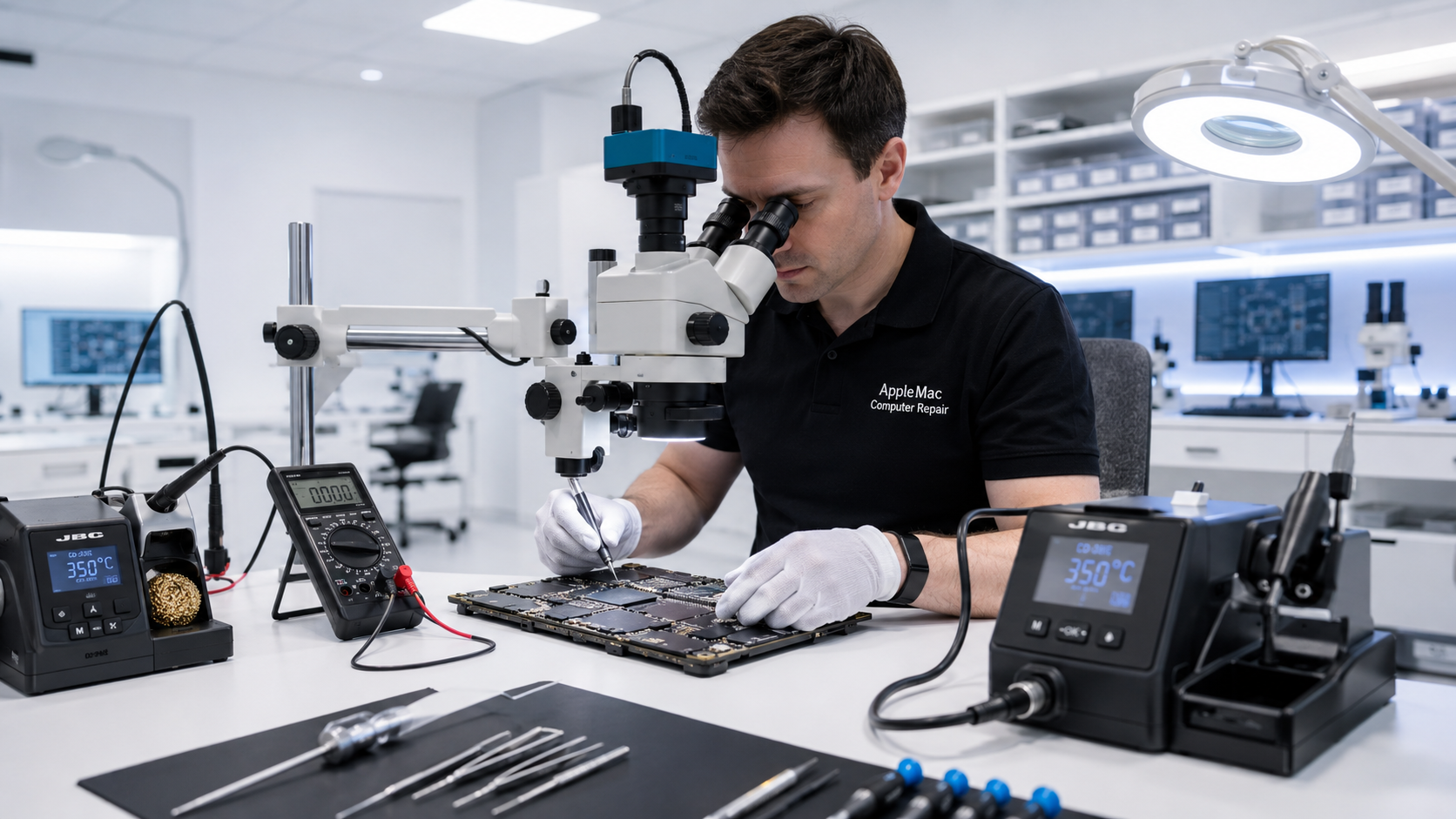
Speed Up an Older Mac
Many older iMacs and Macs were originally supplied with a mechanical hard disk drive. A modern SSD has no moving disk mechanism and provides much faster access to files and applications.
For basic sequential file transfers, SSDs are commonly several times faster than traditional hard drives, although actual speed improvement depends on the Mac, drive interface, SSD, workload and condition of the original hard drive.
In everyday use, the most noticeable improvements are often faster startup, quicker application launches, faster file access and a more responsive Mac.
macOS can start considerably faster because the SSD can access system files without the mechanical delays of a hard drive.
Applications and files generally open more quickly, making the Mac feel much more responsive during normal use.
Newer macOS versions and modern applications perform substantial storage activity. An SSD can provide the faster storage response that helps an older compatible Mac run them more smoothly.
iMac SSD Upgrade
If an older iMac still uses a mechanical hard drive, replacing it with an SSD can make a major difference in normal daily use. The computer may feel slow even when the processor and other hardware are still adequate because the original hard drive has become the performance bottleneck.
After the SSD installation, we can install or upgrade macOS to the highest suitable version for the Mac's year and hardware, depending on compatibility and the customer's requirements.
An SSD does not make an unsupported Mac officially compatible with every macOS release, but faster storage can make a significant difference when running a newer compatible operating system.
Learn about our macOS Upgrade Service →RAM Upgrade
RAM allows the Mac to keep more active applications and working data readily available. Increasing RAM can help when using multiple applications, many browser tabs, larger documents, photo applications and other memory-intensive workloads.
RAM is not upgradeable on every Mac. Many newer Mac models use memory integrated into the logic board or Apple silicon package and cannot be upgraded after purchase. We check your exact Mac model first and recommend a RAM upgrade only when the hardware supports it.
If a Mac still has a mechanical hard drive, an SSD is usually the upgrade that produces the most obvious improvement in everyday responsiveness. If the Mac already has fast storage but regularly runs short of memory, additional RAM may help — provided the model supports memory upgrades.
For some older Macs, upgrading both the SSD and RAM can extend the computer's useful life considerably.
Upgrade options depend on the exact model and year.
No iPhone • No iPad • No Windows computers
We check the exact model and year to determine which SSD, RAM and macOS options are supported.
We recommend the practical upgrade based on the existing drive, memory, Mac hardware and how you use the computer.
We install the approved SSD and/or RAM and configure the storage and operating system as required.
We test startup, storage, memory where applicable and normal system operation before return.
Your Data
If the original drive is still readable, we can discuss options for transferring your existing data to the new SSD. Data transfer depends on the condition of the old drive and is separate from simply installing a new drive.
Please tell us before service if preserving your existing files is important. As with any computer repair or upgrade, customers should maintain a current backup whenever possible.
Learn about Mac Data Recovery →In many older iMacs that still use a mechanical hard drive, an SSD can provide a very noticeable improvement in startup, application loading, file access and overall responsiveness.
SSDs can be several times faster than traditional hard drives in basic sequential transfer tests, but there is no single speed multiplier for every Mac or workload. Actual performance depends on the drive, interface, Mac model and type of task.
Yes, where appropriate. We can install the highest suitable macOS version for the Mac's year and hardware. An SSD improves storage performance but does not by itself change the Mac's operating-system compatibility.
No. RAM is upgradeable only on supported models. Many newer Macs have integrated memory that cannot be upgraded after purchase. We check the exact model before recommending RAM.
If the Mac still uses a mechanical hard drive, an SSD often gives the most noticeable everyday speed improvement. RAM is especially useful when the model supports upgrades and memory capacity is limiting multitasking or applications.
If the original drive is readable, we can discuss data-transfer options. If the drive has failed or has serious errors, data recovery may be required instead.
Repair Request
Providing the model and a clear description of the problem helps us prepare for your appointment.
Your message has been sent successfully. We’ll get back to you within one business day.